
MCP Server For Java
主要功能
Java开发支持
- 在项目、外部依赖和JDK中搜索Java类型(类、接口、枚举)
- 获取项目和外部依赖的Java类型定义和源代码
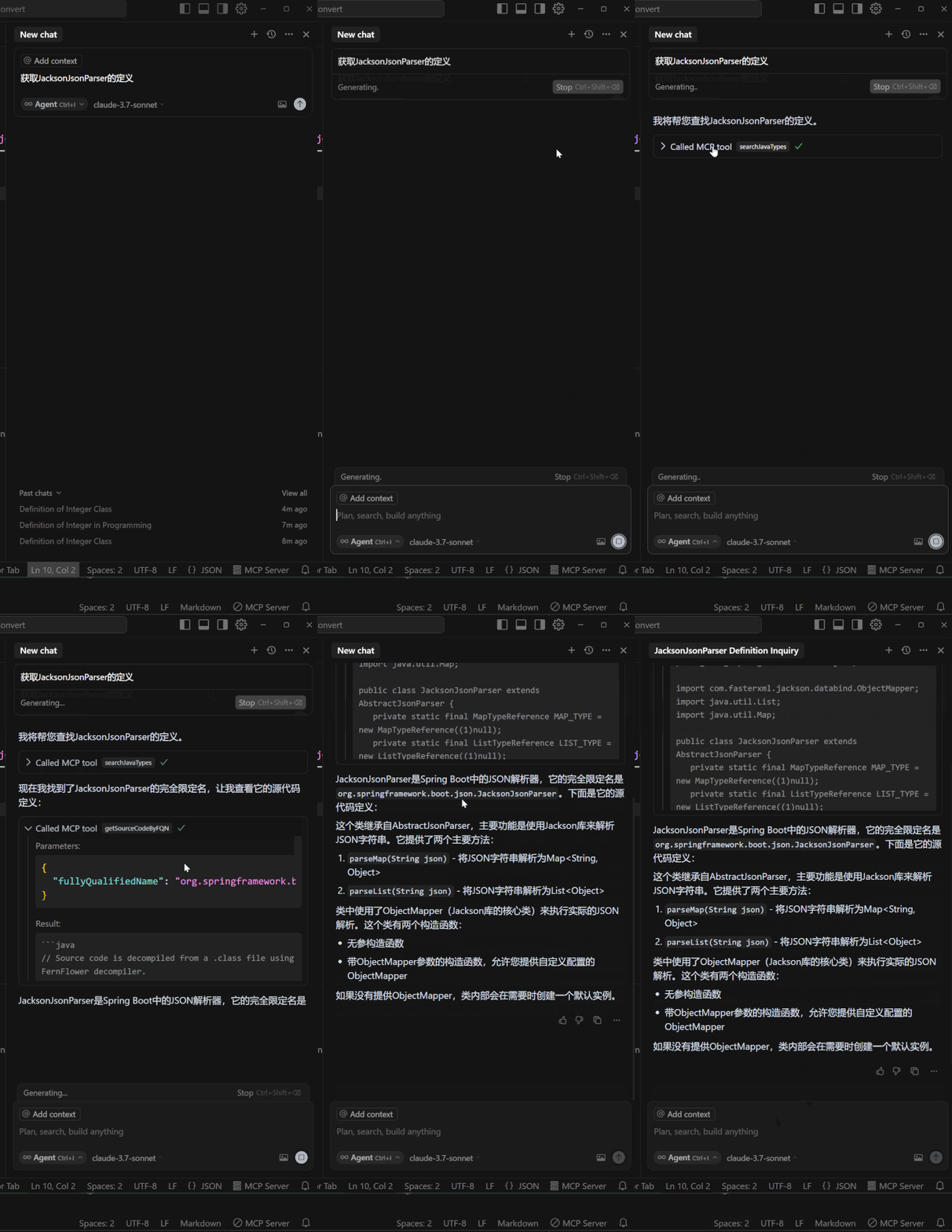
描述
一个VSCode或Cursor插件,可将您的Cursor或Vscode系IDE作为MCP服务器,提供高级编码辅助功能。如获取项目中的类,与通过全限定名获取类的源代码等(包含项目源代码,以及项目中所有可访问依赖中的类)
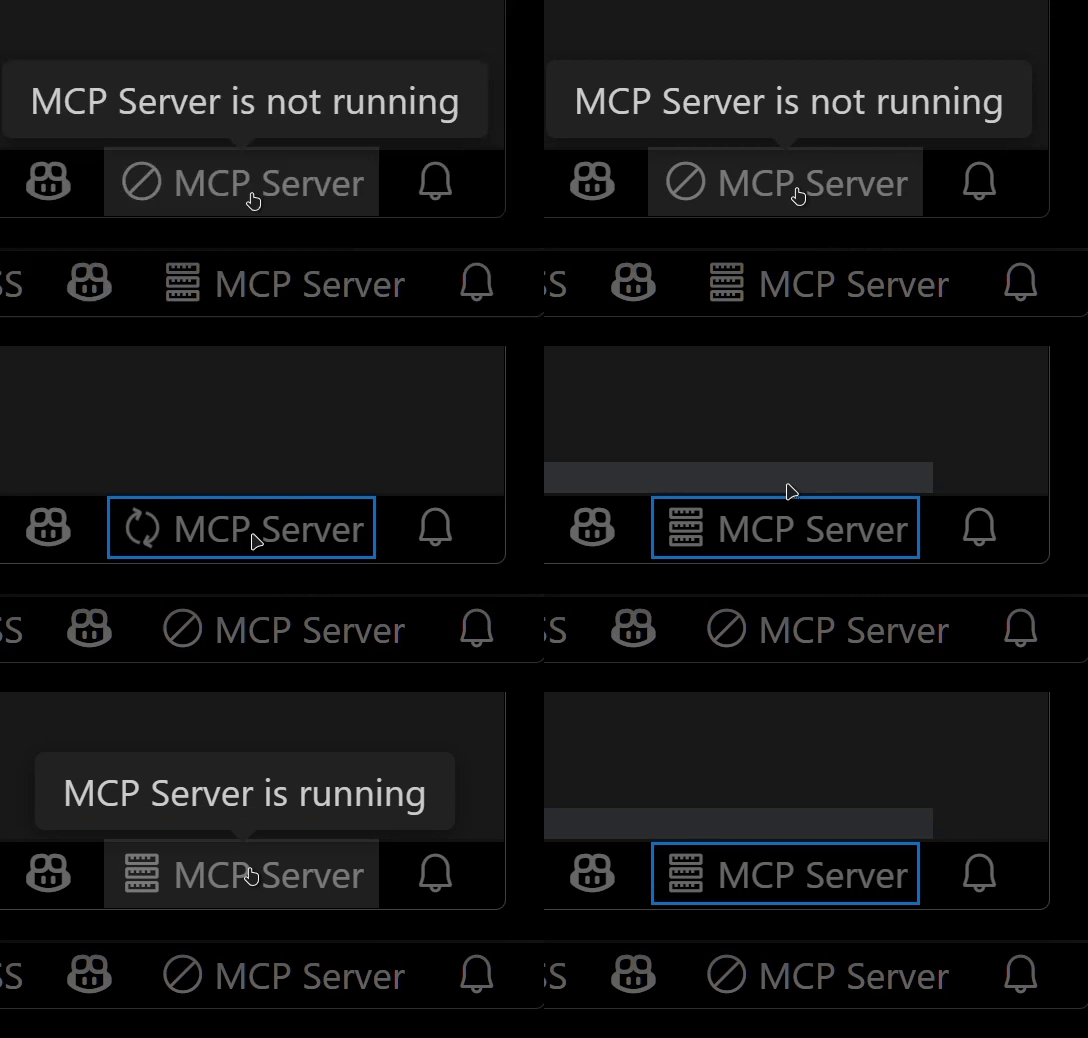
多实例切换(注:功能会运行在唯一处于运行状态的mcp server上)
- 通过点击状态栏项目,轻松在多个打开的VSCode或Cursor窗口之间切换MCP服务器。
内置工具
- searchJavaTypes: 按名称搜索Java类型(类、接口和枚举)
- getSourceCodeByFQN: 通过完全限定名获取Java类型的源代码定义
首次安装与设置
-
确认已经安装插件Extension Pack for Java 且可正常运行java项目
-
下载安装本插件MCP Server for Java。
-
配置您的MCP客户端:
- 如Claude Desktop,Curosr,Winsurf,Vsocde,Cherry studio等客户端:添加以下内容到您的配置文件(
claude_desktop_config.json)中:
{ "mcpServers": { "vscode-java": { "command": "npx", "args": ["vscode-as-mcp-server"] } } } - 如Claude Desktop,Curosr,Winsurf,Vsocde,Cherry studio等客户端:添加以下内容到您的配置文件(
-
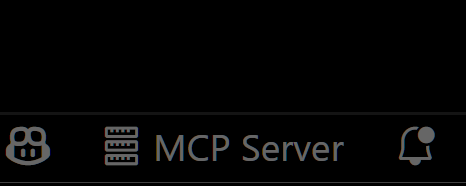
在VSCode或Cursor状态栏右下角查看MCP服务器状态:
- ✅: 服务器正在运行
- ∅: 点击启动服务器
- 打开一个java项目,并确保项目完全加载完毕

MCP Server For Java
Key Features
Java Development Support
- Search for Java types (classes, interfaces, enums) across your project, external dependencies, and JDK
- Get Java type definitions and source code from both project and external dependencies
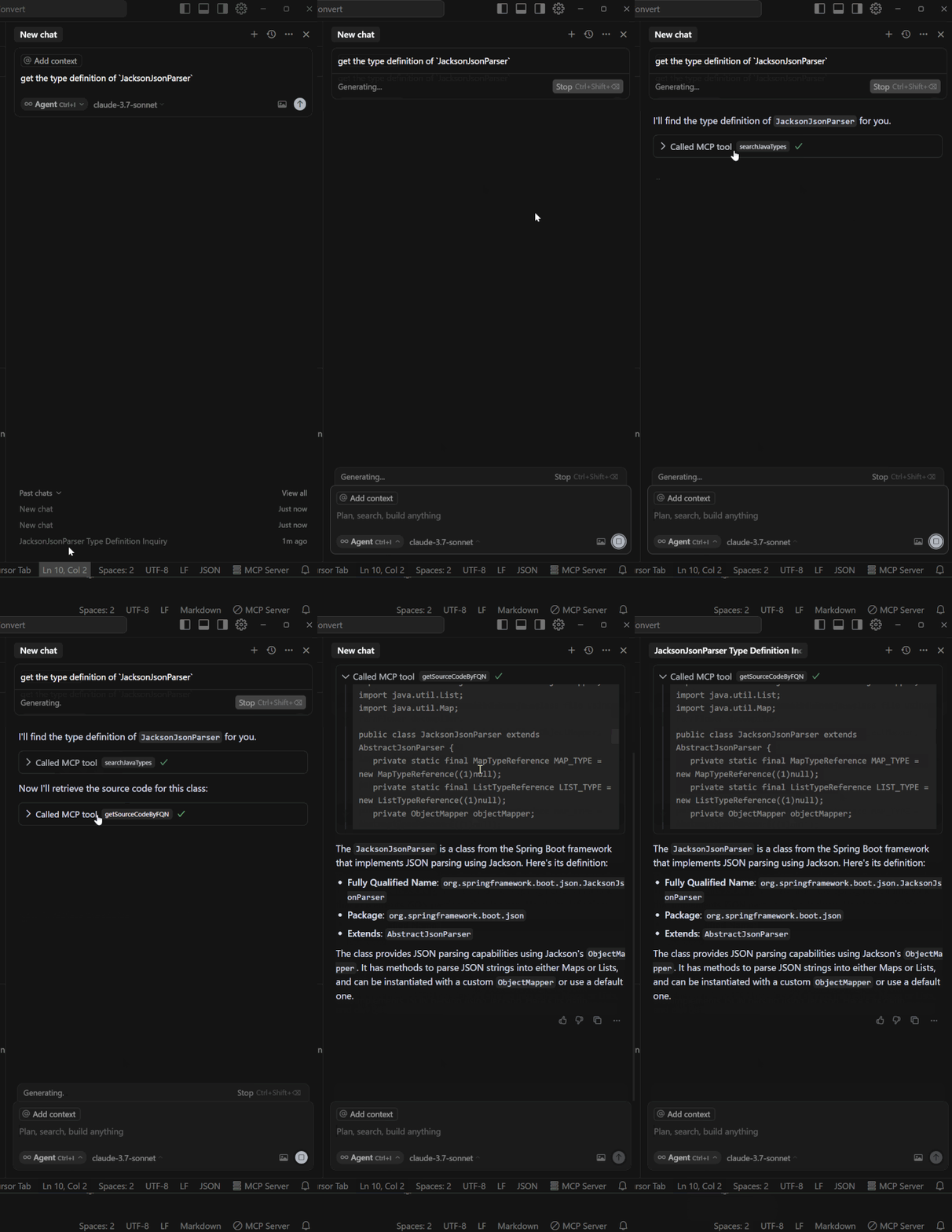
Description
A VSCode or Cursor extension that turns your VSCode or Cursor into an MCP server, providing advanced coding assistance for MCP clients (such as Cursor, VSCode copilot, Claude Desktop, Cherry studio). Features include retrieving classes from your project and getting source code via fully qualified names (including project source code and classes from all accessible dependencies in the project).
Multi-instance Switching (Note: Functionality will run on the only MCP server in running status)
- Easily switch the MCP server between multiple open VSCode or Cursor windows by clicking the status bar item.
Available Built-in Tools
- searchJavaTypes: Search for Java types (classes, interfaces, and enums) by name
- getSourceCodeByFQN: Retrieve the source code definition of a Java type by its fully qualified name
Installation & Setup
-
Confirm that the Extension Pack for Java plugin is installed and can run Java projects normally
-
Download and install this extension MCP Server for Java.
-
Configure your MCP client:
- For clients like Claude Desktop, Cursor, Winsurf, VSCode, Cherry studio: Add the following to your configuration file (
claude_desktop_config.json):
{ "mcpServers": { "vscode-java": { "command": "npx", "args": ["vscode-as-mcp-server"] } } } - For clients like Claude Desktop, Cursor, Winsurf, VSCode, Cherry studio: Add the following to your configuration file (
-
Check the MCP server status in the bottom-right VSCode or Cursor status bar:
- ✅: Server is running
- ∅: Click to start the server
- Open a Java project and make sure the project is fully loaded
Server Config
{
  "mcpServers": {
    "vscode-java": {
      "command": "npx",
      "args": [
        "vscode-as-mcp-server"
      ]
    }
  }
}